
The widgets
| Widget | What a tap does |
|---|---|
| Contactless Access | Opens CA Secure. |
| Path | Starts the path you chose for it. |
| Secure Door | Opens the secure door you chose, when you're near it. Only available once you have a secure door. |
Add a widget
Android
- Hold an empty spot on your home screen and tap Widgets.
- Find CA Secure and drag the widget you want onto the screen.
- For the Path widget, choose the path (Choose a PATH for this widget). For the Secure Door widget, choose the door.
iPhone
- Hold an empty spot on your home screen, then tap Edit › Add Widget.
- Find CA Secure, pick the widget and size, and tap Add Widget.
- For the Path widget, hold it, tap Edit Widget and choose the path.
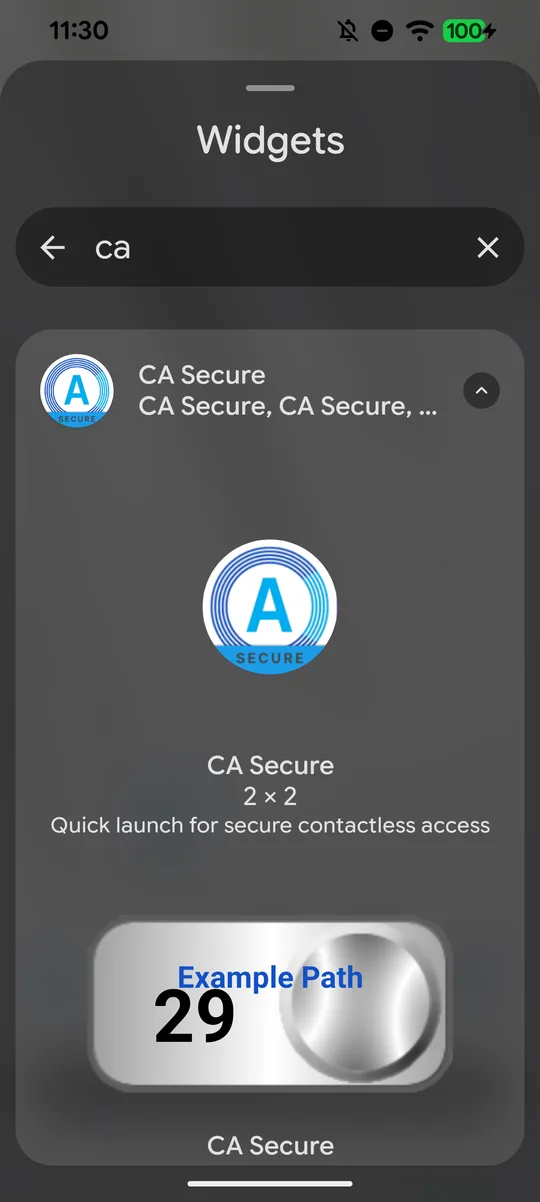
1. Widgets › CA Secure 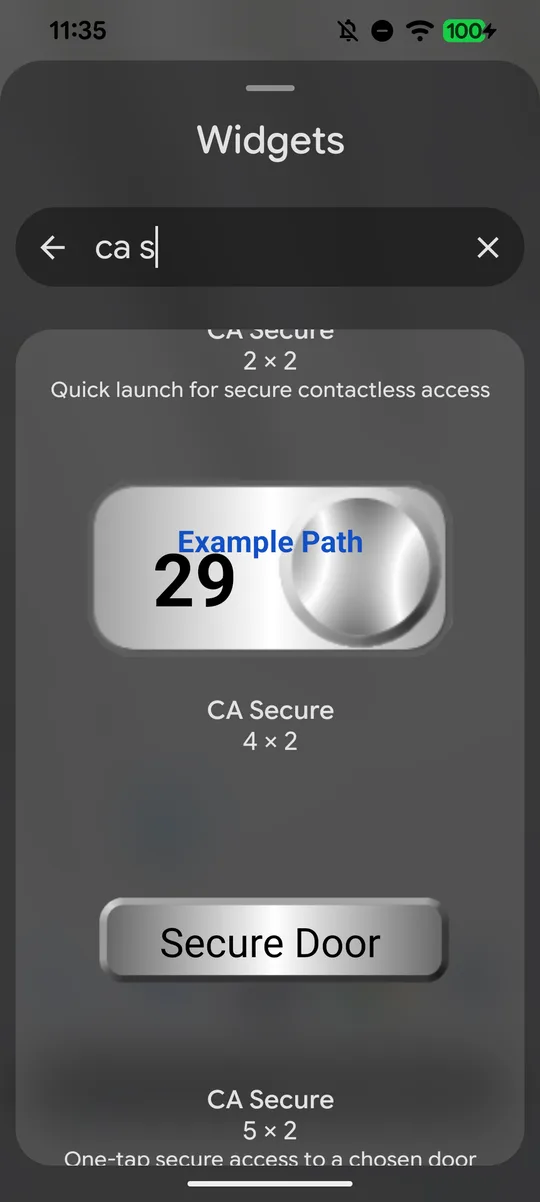
The Secure Door widget 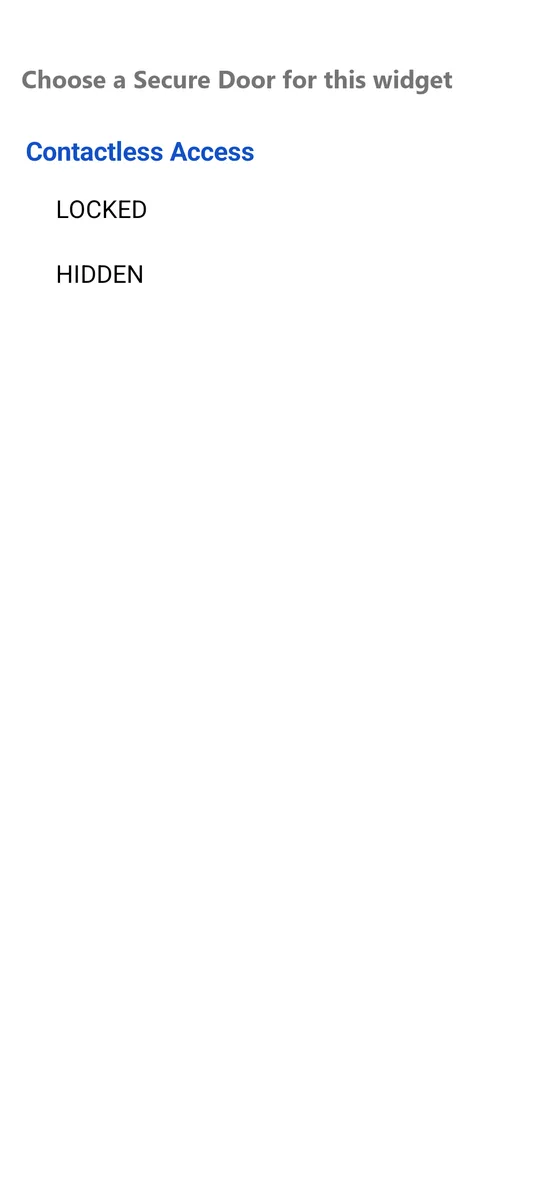
2. Choose the door 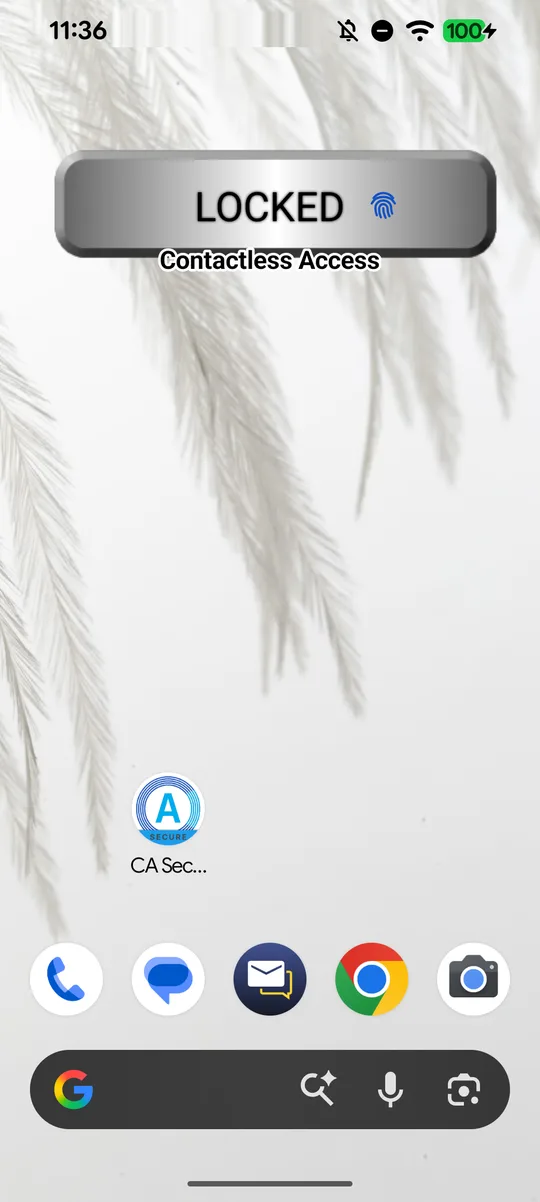
On your home screen 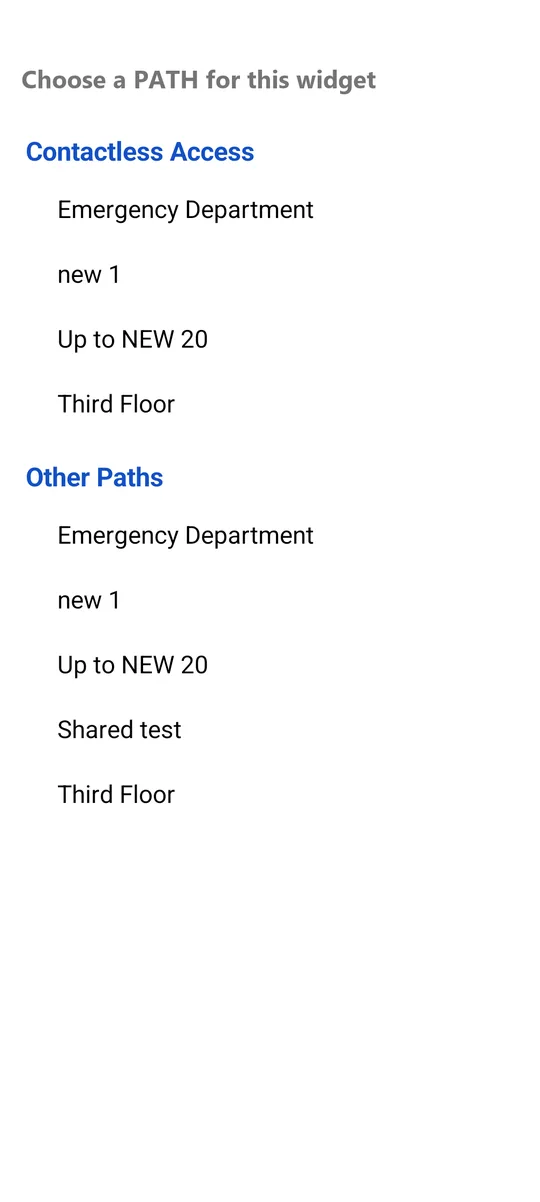
For a Path widget, choose the path 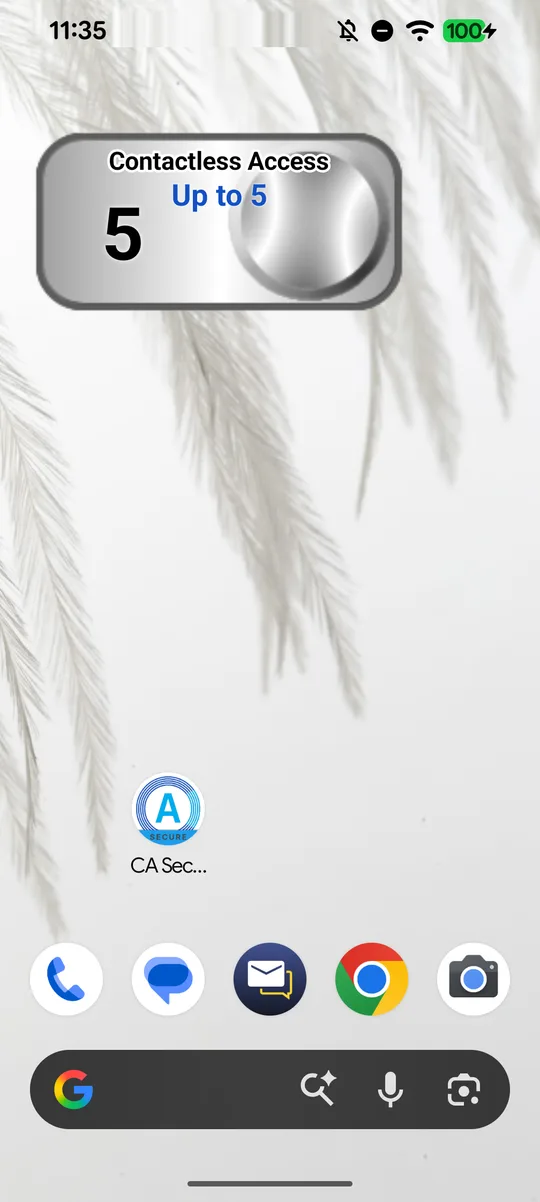
On your home screen
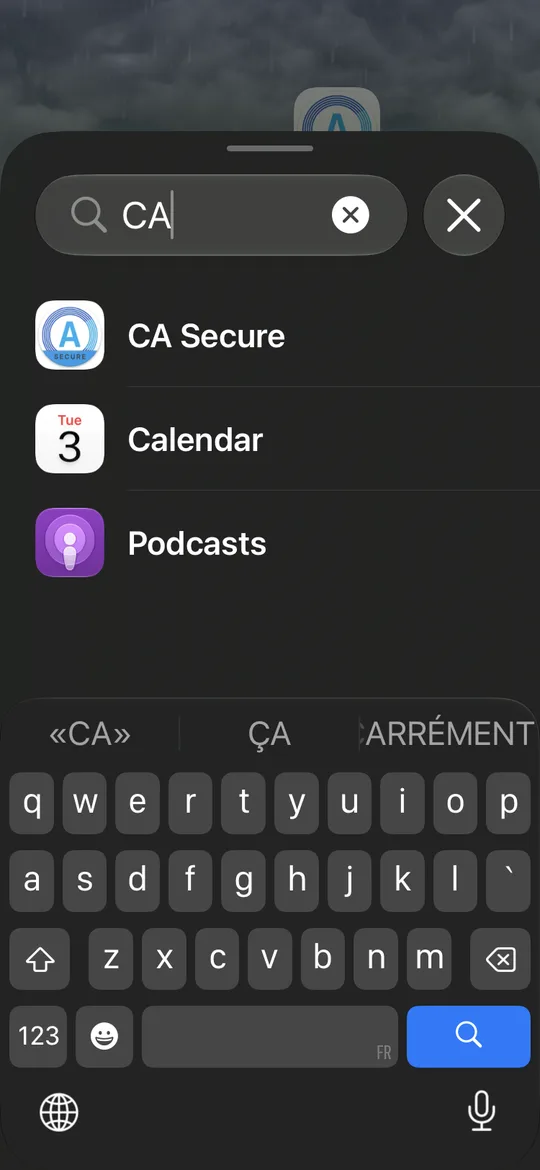
1. Add Widget › CA Secure 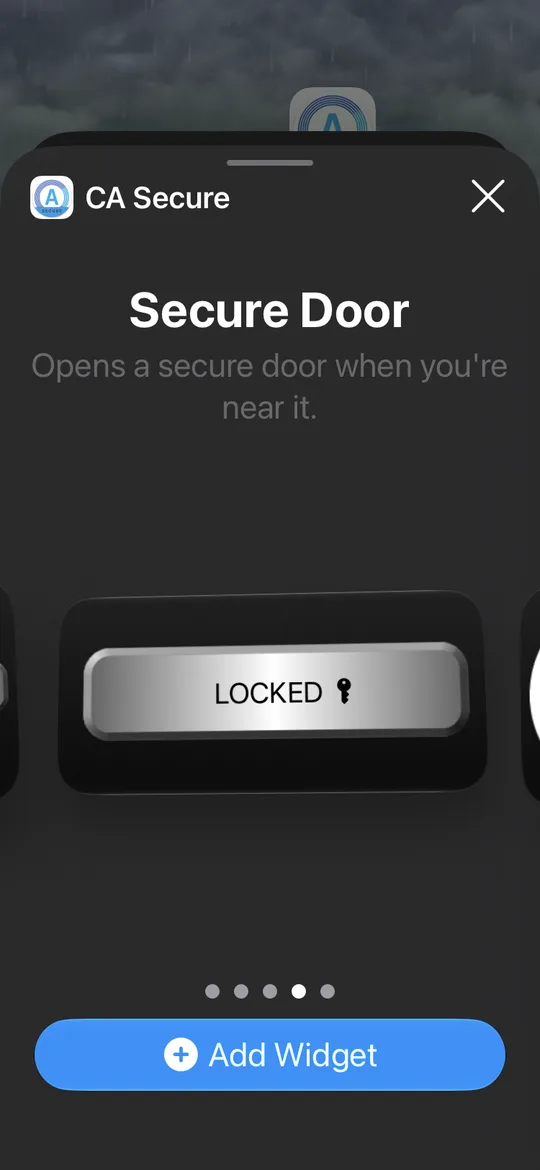
Pick a widget, tap Add Widget 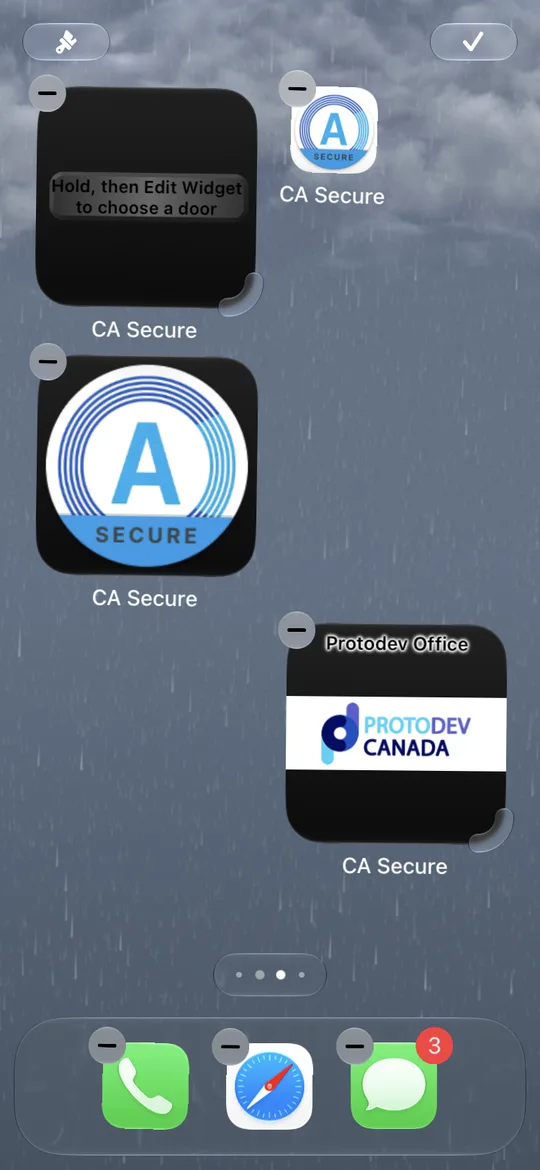
2. Hold it, tap Edit Widget 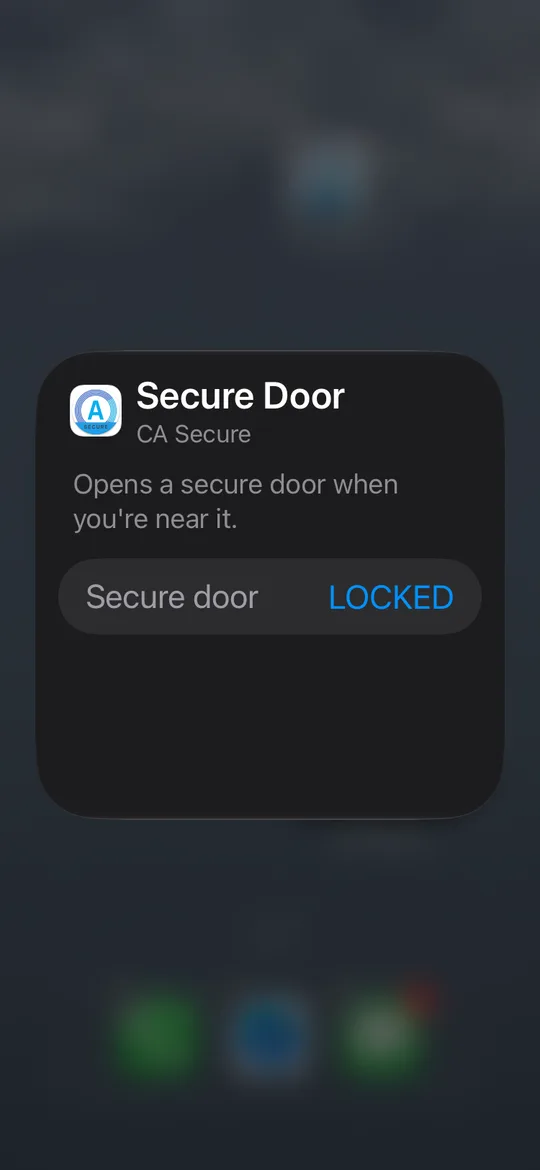
3. Choose the door 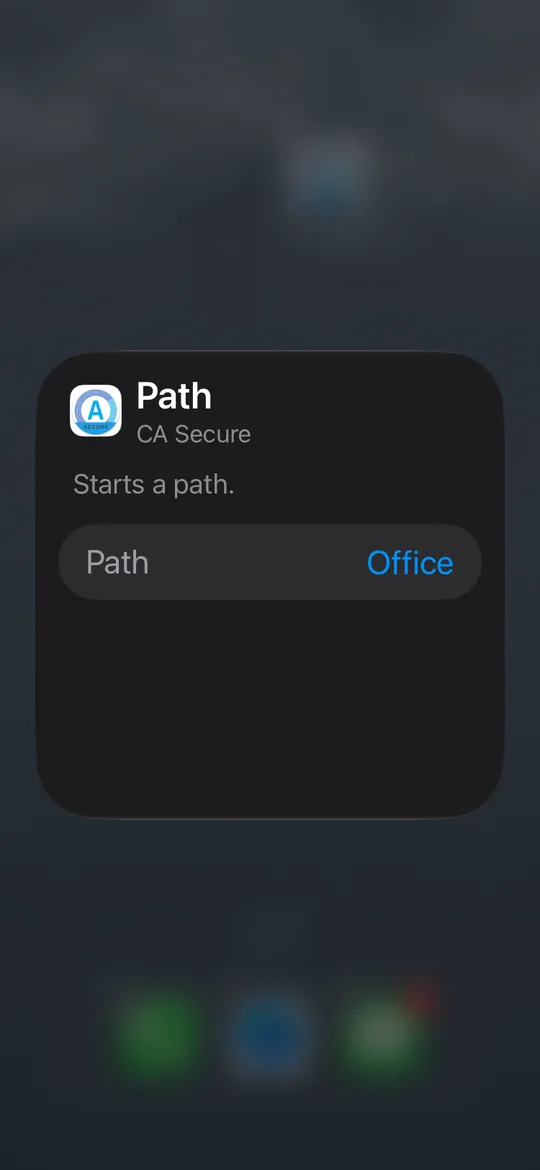
For a Path widget, choose the path 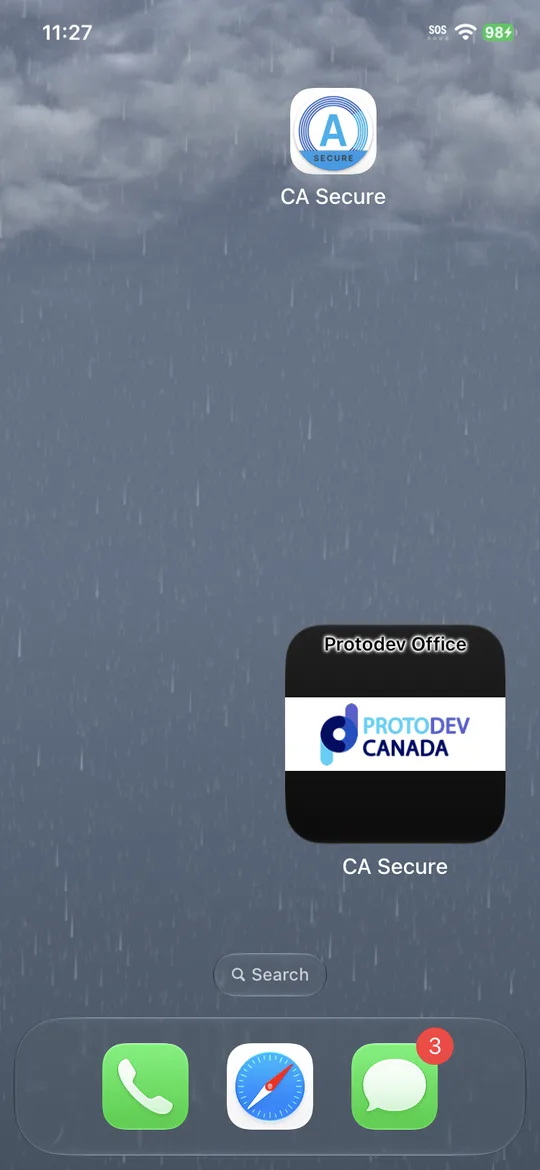
On your home screen
No paths yet?
The Path widget needs a path first. See Paths to make one.
Still stuck?
In CA Secure, open Settings and tap Contact to send us a message, or email info@contactlessaccess.com.