
Find the buttons near you
- Open CA Secure on the Home screen.
- Tap SEARCH at the bottom. While it looks for nearby devices, the button reads STOP SEARCHING. A search runs for about two minutes, and starts by itself after setup.
- CA Secure knows which building or station you're at from your location. The top of the screen shows the place, with the building's own logo if it has one.
Call the elevator
Outside the elevator, CA Secure shows the up and down call buttons, and nearby doors such as entrances and washrooms. Tap the one you want.
Inside the elevator
Inside, CA Secure opens on Floors: tap your floor. Tap the group button at the top to switch to Utilities for door open, door close, the emergency phone and the alarm.
Did it work?
With TalkBack or VoiceOver on, CA Secure says the button's name and pressed. If it couldn't reach the device, it says not sent, try again: move a little closer and tap again.
Open a door automatically
For a door you use often, you can have CA Secure open it as you come near:
- On the Home screen, hold (long-press) the door's button.
- In Auto Open, turn on Enable Auto Open.
- Set how long to wait before it opens again (Cooldown), and how close you need to be (RSSI Threshold: closer to 0 means you need to be nearer). Tap Save.
- A dot on the door's button shows Auto Open is on, and a message says Auto Open ENABLED. To turn it off, hold the button again.
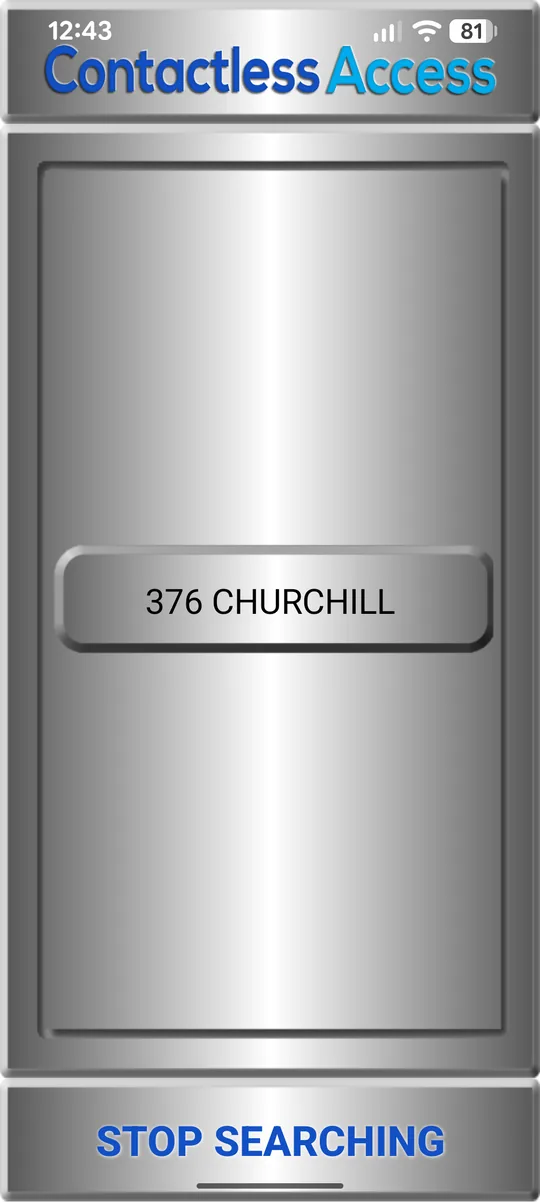
1. Hold the door's button 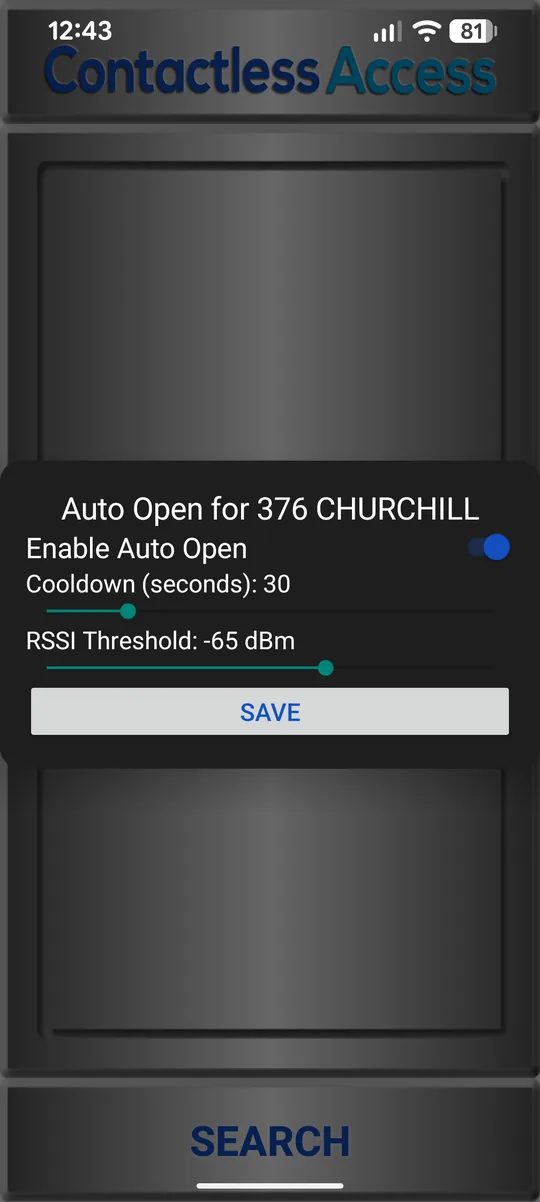
2. Turn it on and tap Save 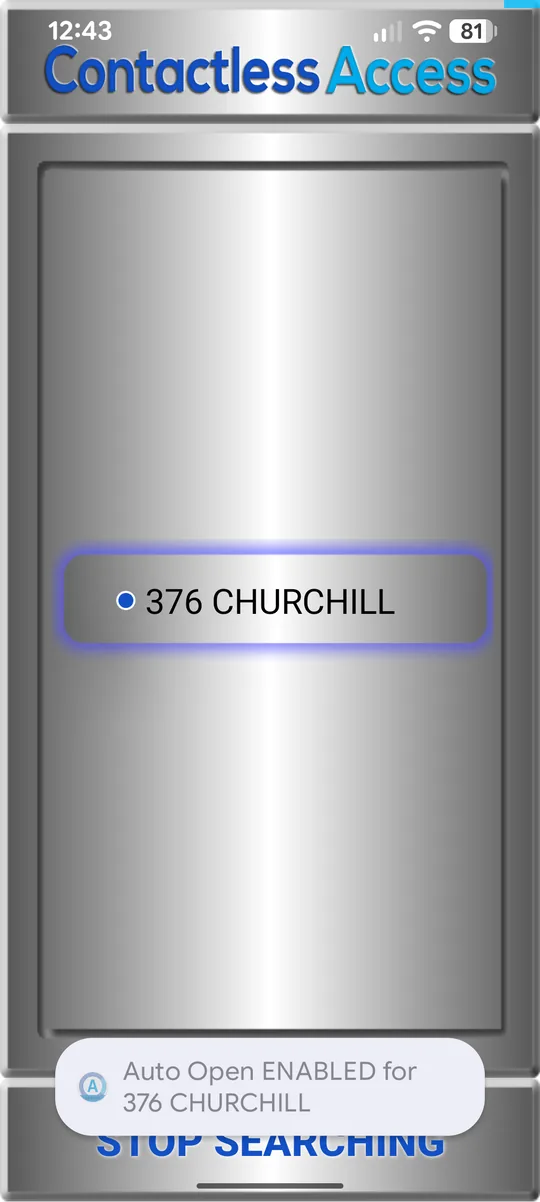
3. The dot shows it's on
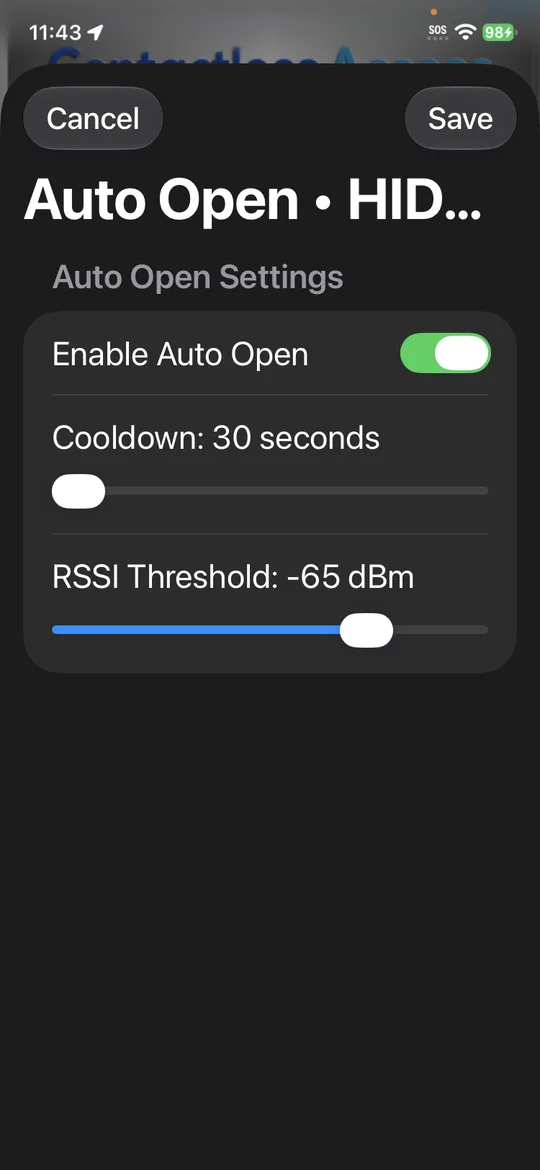
Hold the door, turn it on, tap Save 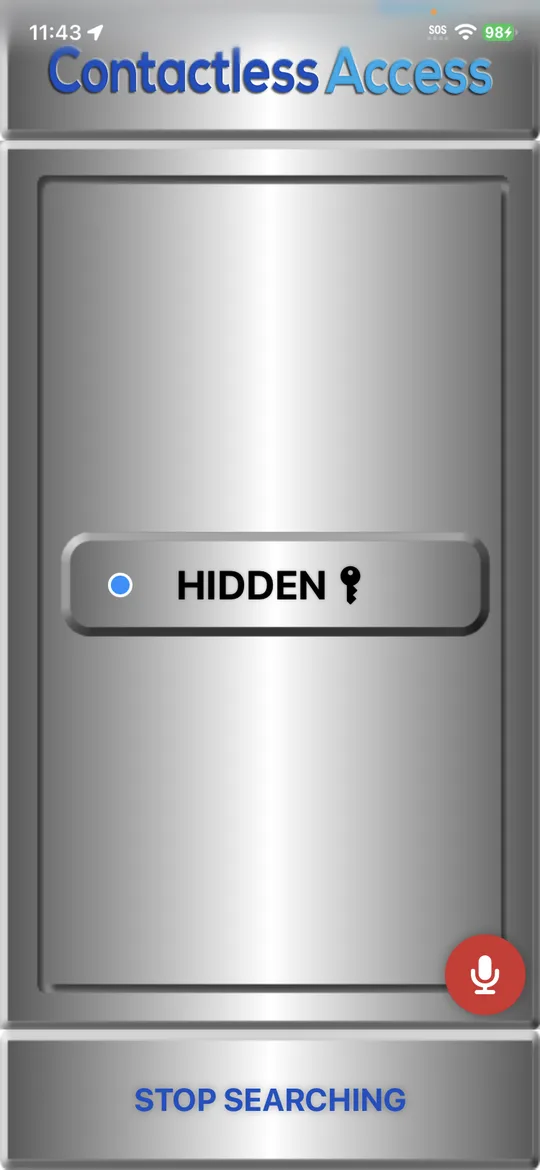
The dot shows it's on
Still stuck?
In CA Secure, open Settings and tap Contact to send us a message, or email info@contactlessaccess.com.