
Add a secure door
Your building's administrator sends you access by email or text link, or a QR code.
- From a link: on the phone you'll use at the door, tap the link. CA Secure opens on its Secure screen with the door added. The link works once, on one phone.
- From a QR code: point your phone's camera at the code and tap the link it shows.
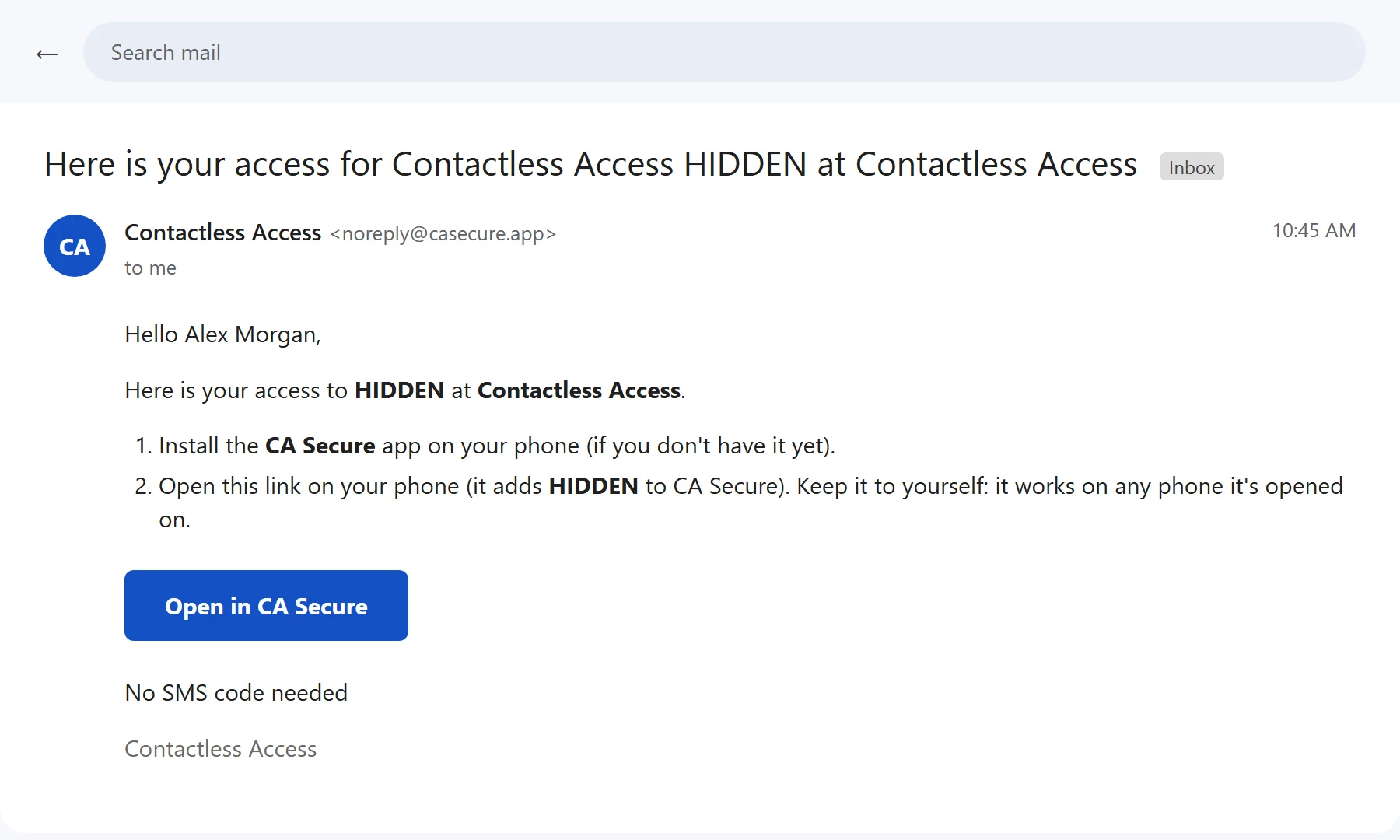
Android
If the link opens in your browser instead, tap Open in CA Secure.
iPhone
If the link opens in Safari, open it again from Mail or Messages instead.
Once you have a secure door, the Secure screen also has a scan button for more codes.
What the door's button says
| Button | Meaning |
|---|---|
| GRANTED | Your access is ready. |
| REQUEST | Tap to ask for your access code. |
| ENTER CODE | You've asked: tap to type the code from the text message. |
| CONNECT | Connect to the internet to finish adding the door. |
| WITHDRAWN | The building has withdrawn your access. |
Get your code
- Tap REQUEST. The first time, enter your phone number and tap Send Request.
- You'll get a 6-digit code by text message.
- Tap ENTER CODE, type or paste the code, and tap Submit. The button turns to GRANTED.
No code? Hold ENTER CODE to ask for another one.
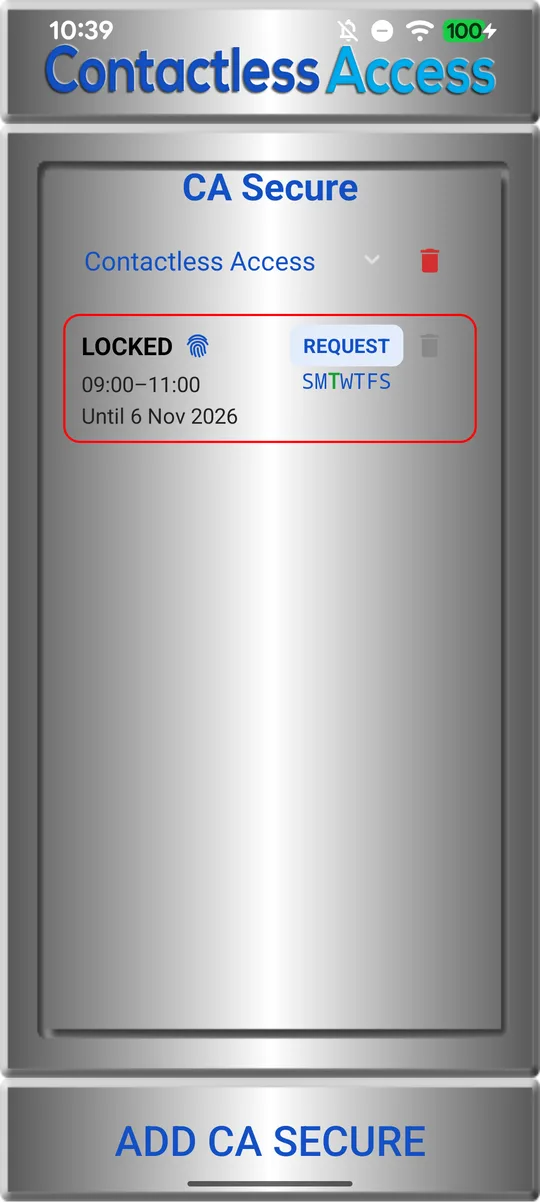
1. Tap REQUEST 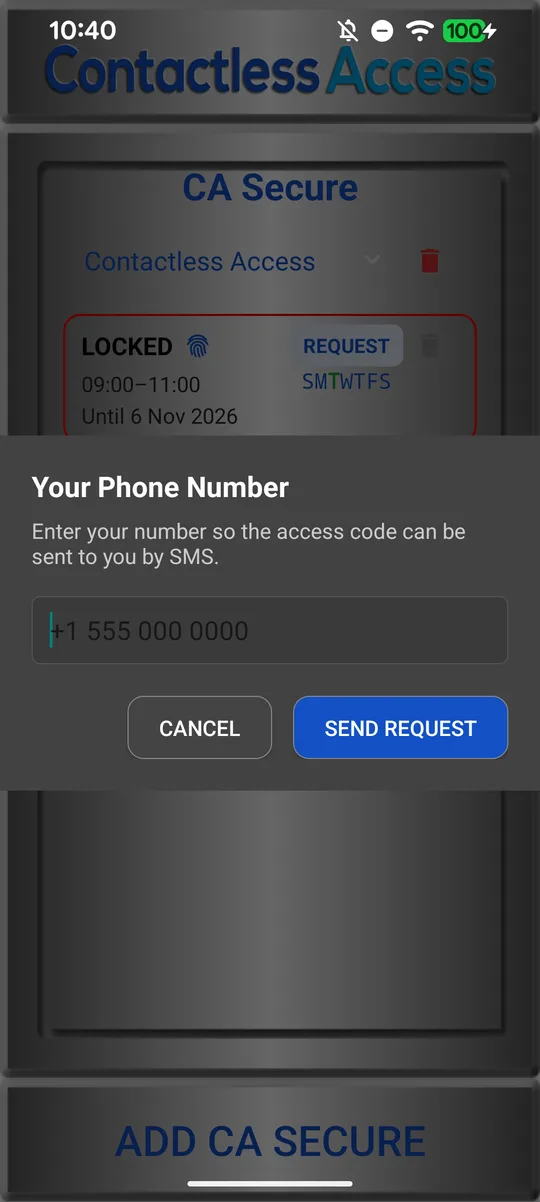
2. Enter your number 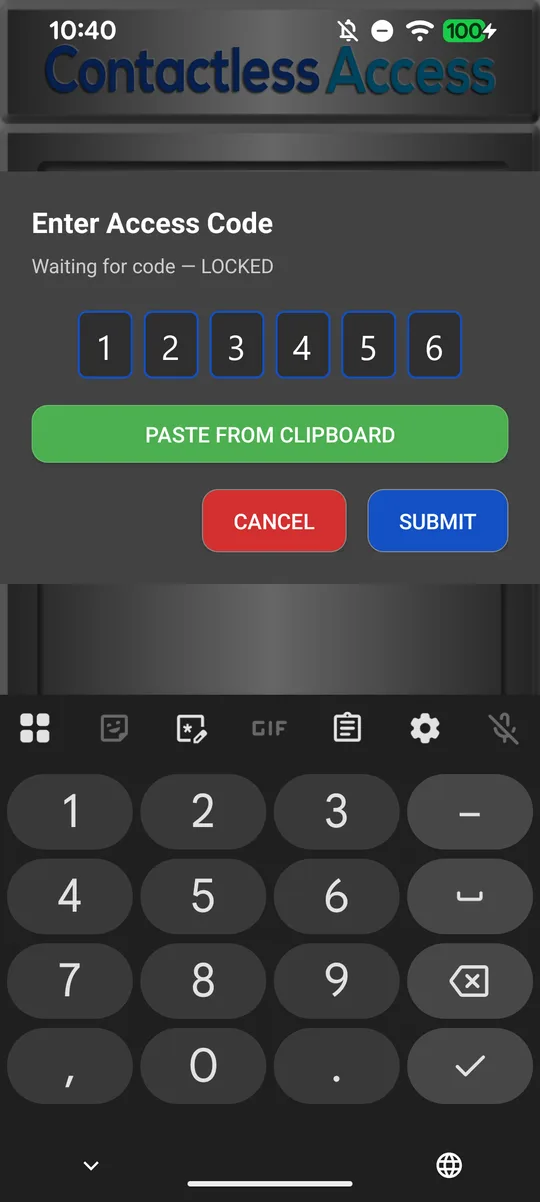
3. Type the code, tap Submit 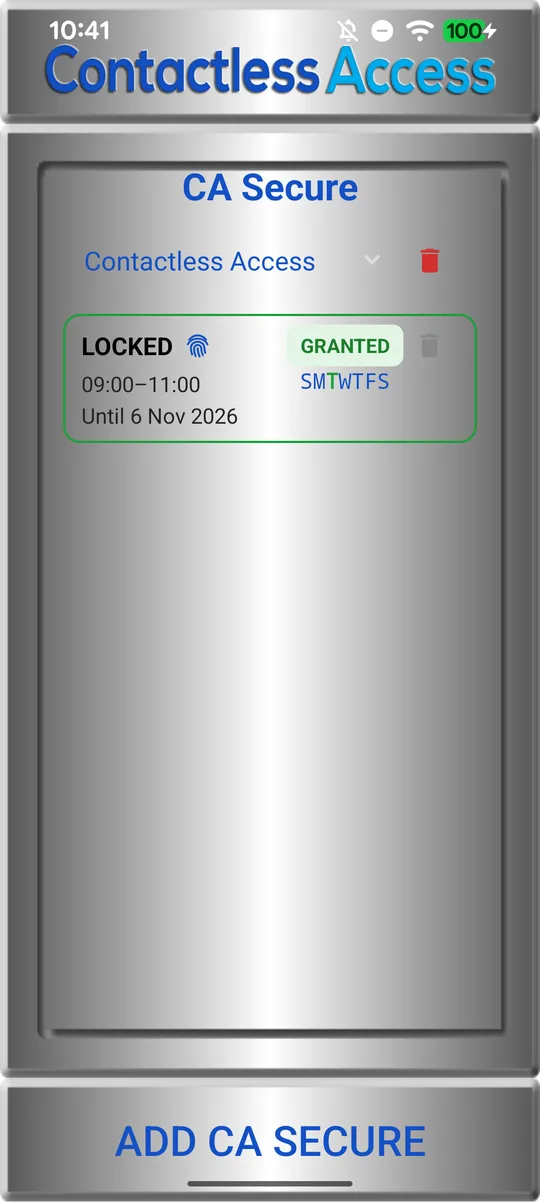
4. It says GRANTED
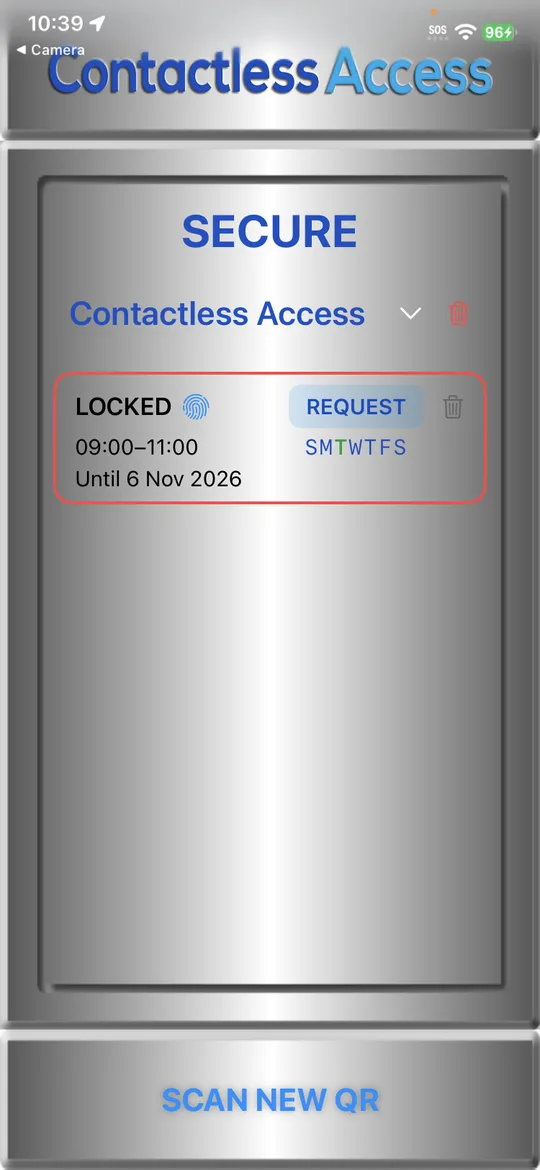
1. Tap REQUEST 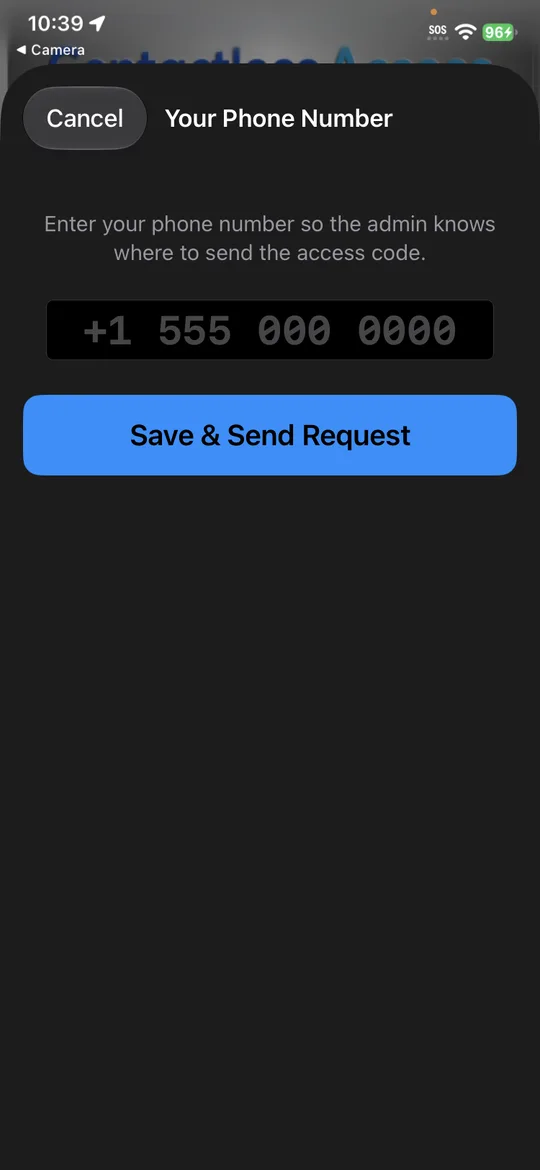
2. Enter your number 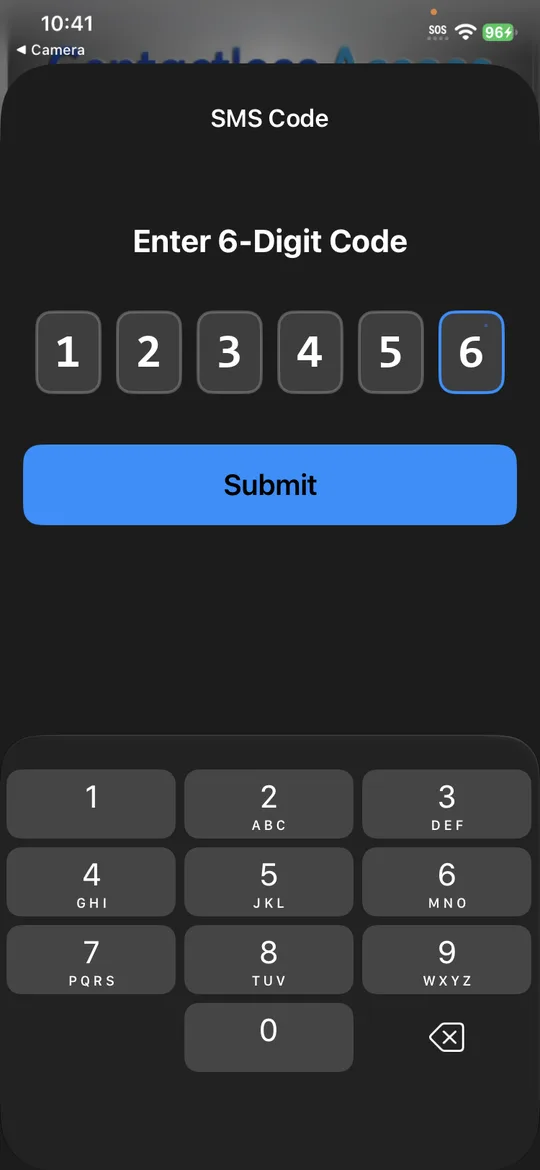
3. Type the code, tap Submit 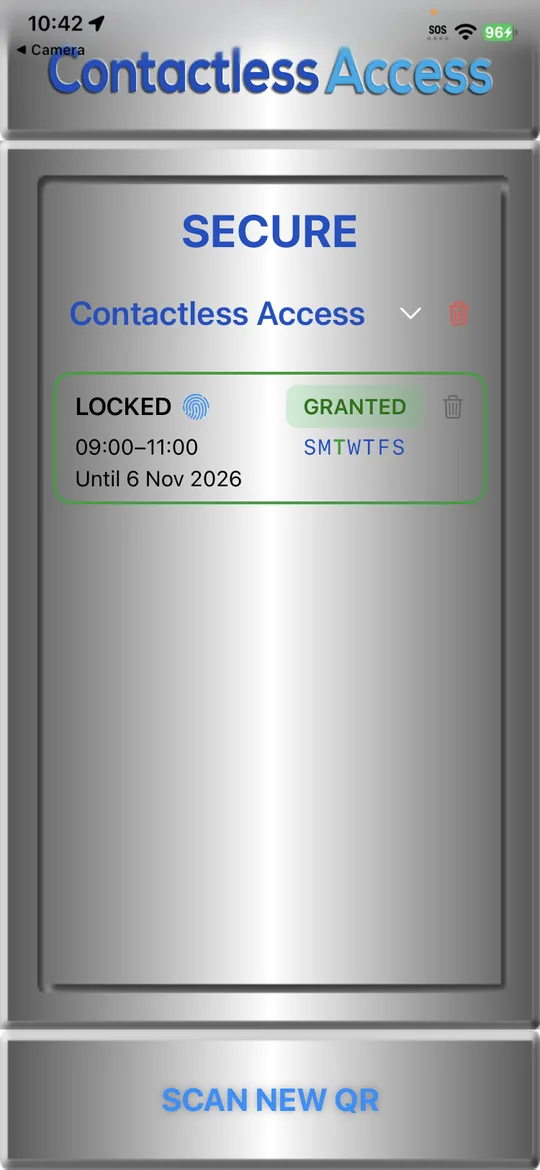
4. It says GRANTED
Open the door
When you're near it, the secure door appears on the Home screen. Tap it. Extra-secure doors also ask you to confirm it's you, with your fingerprint, Face ID or your phone's PIN, each time.
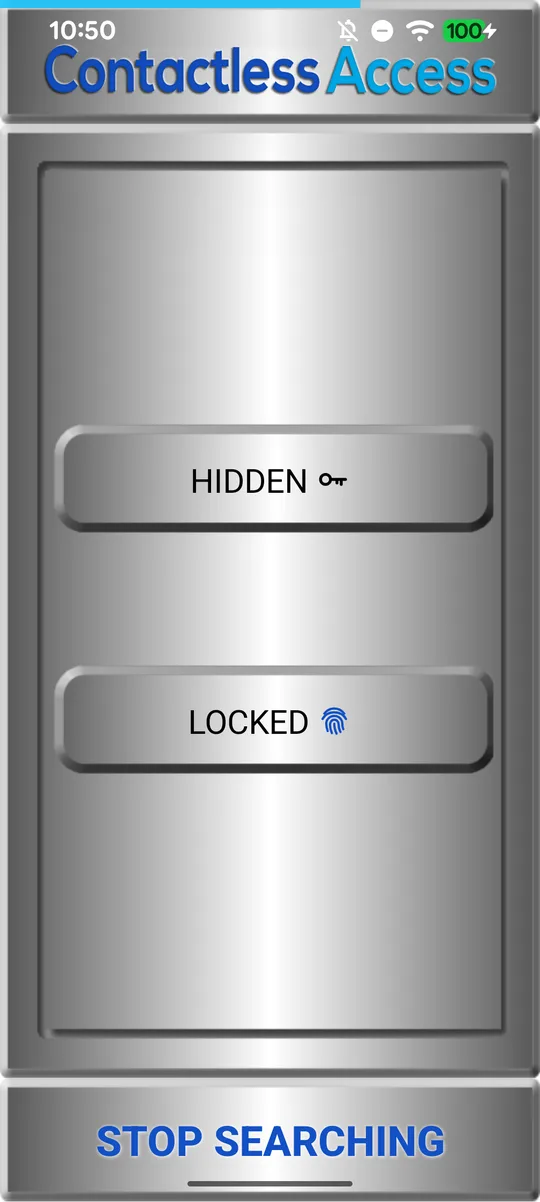
Near the doors: tap one 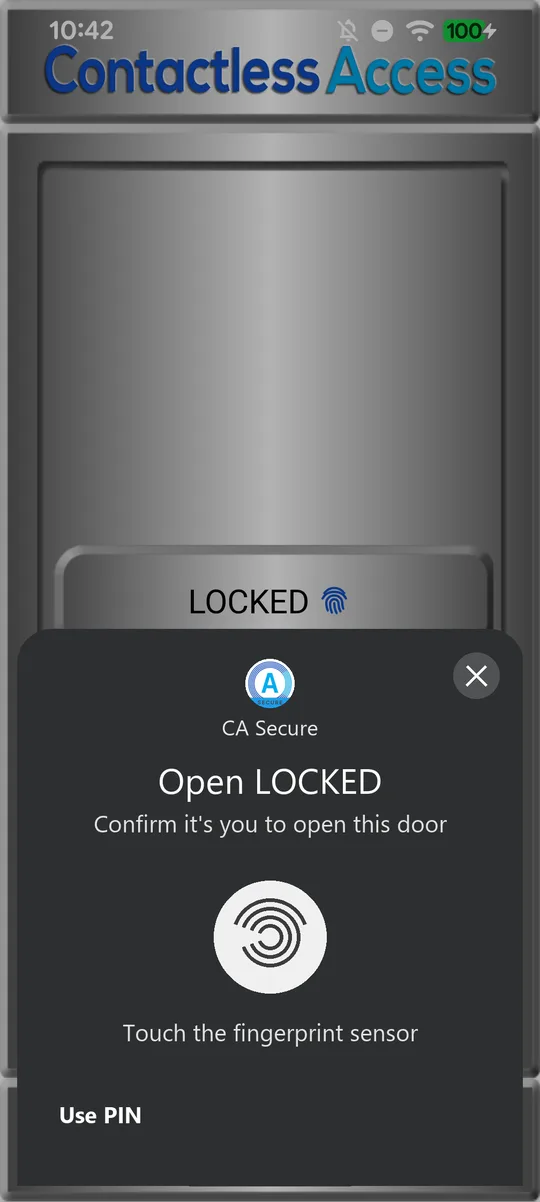
Confirm with your fingerprint or PIN
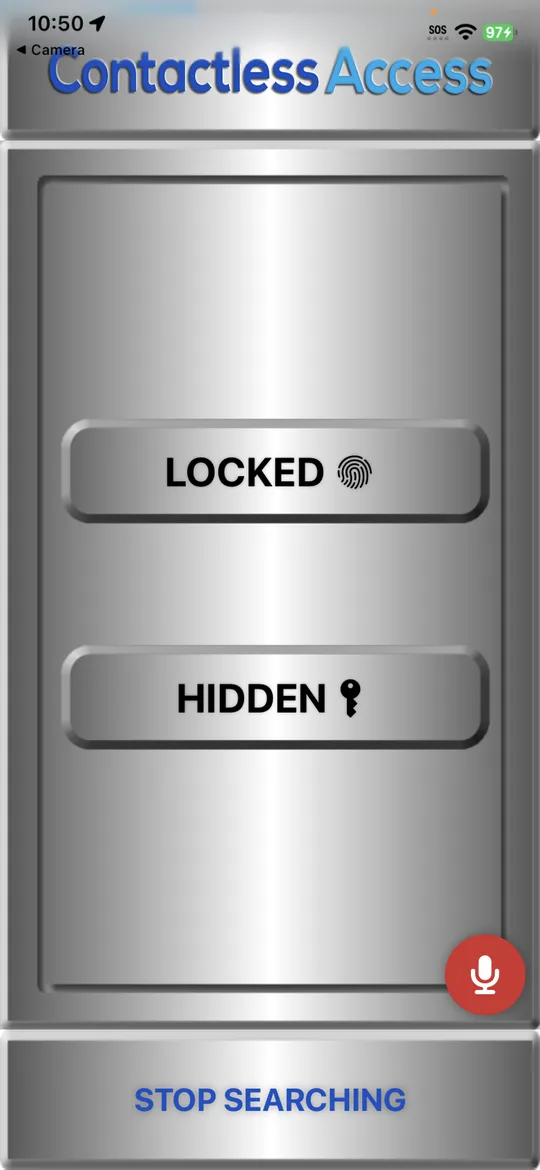
Near the doors: tap one 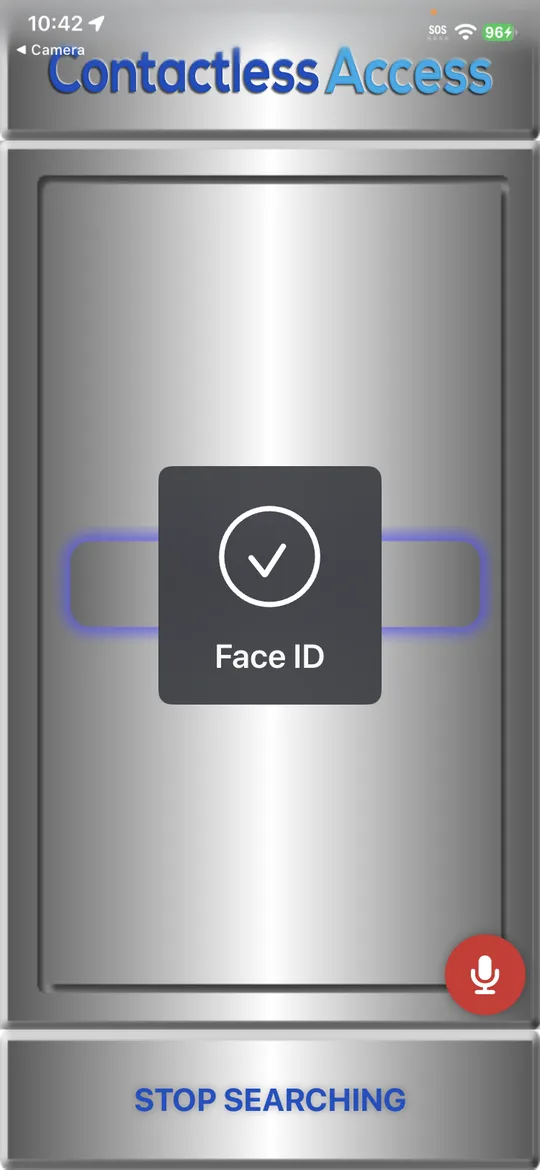
Confirm with Face ID
Your access rules
Tap a door's card on the Secure screen to see its rules: the hours and days it's open to you, any end date, and how often the app needs to check in. Each rule shows ✓ or ✗, so you can see why a door is or isn't open to you right now.
Outside its hours or days, the door's name turns red and pressing it says Access denied. Its card shows which rule is ✗.
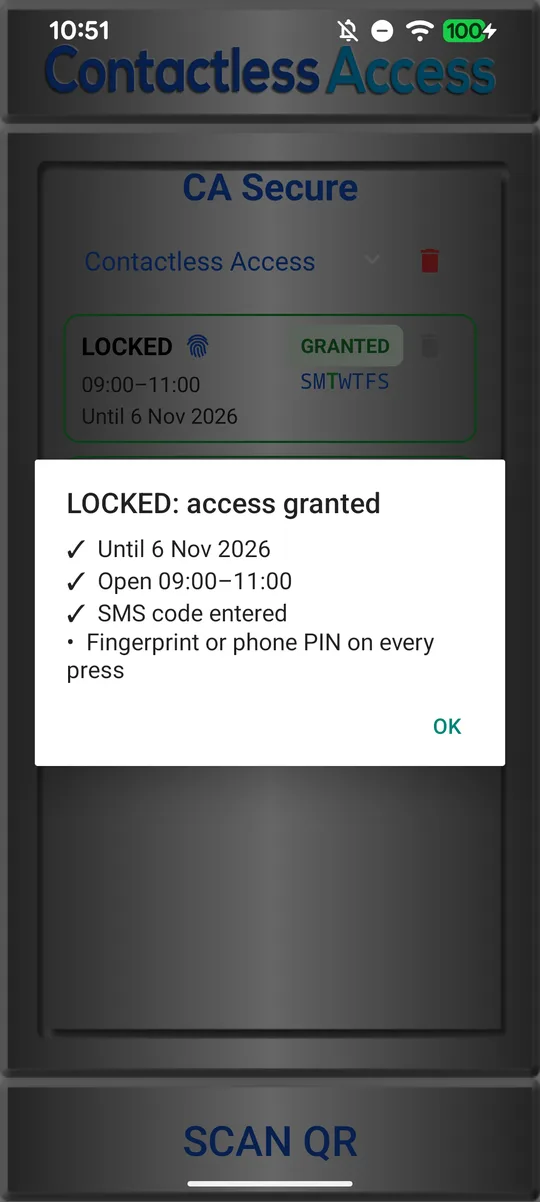
Tap the card: why it's open to you 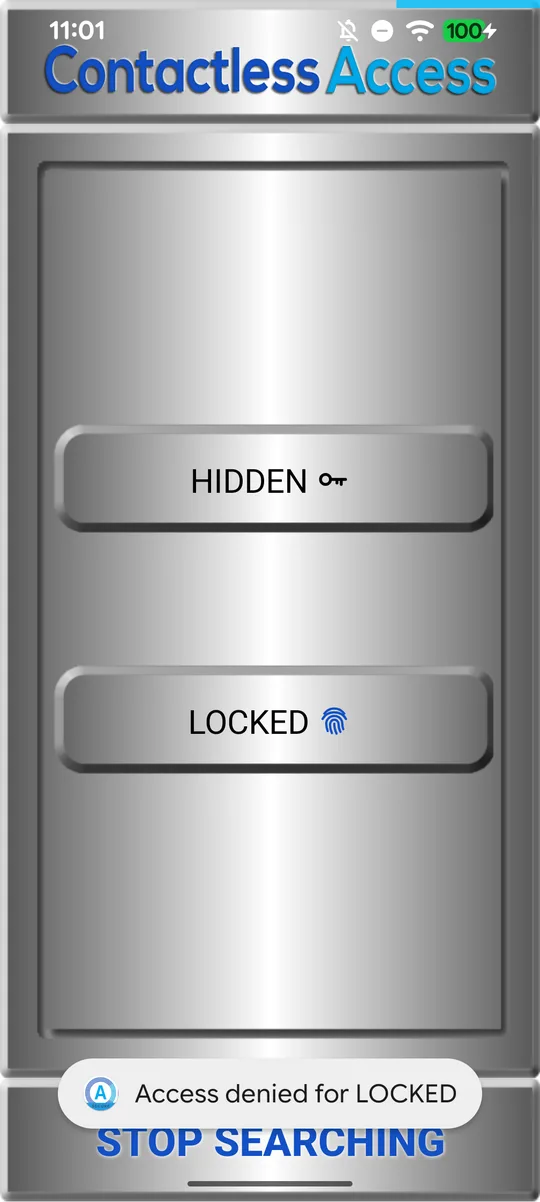
Outside its hours: red, denied 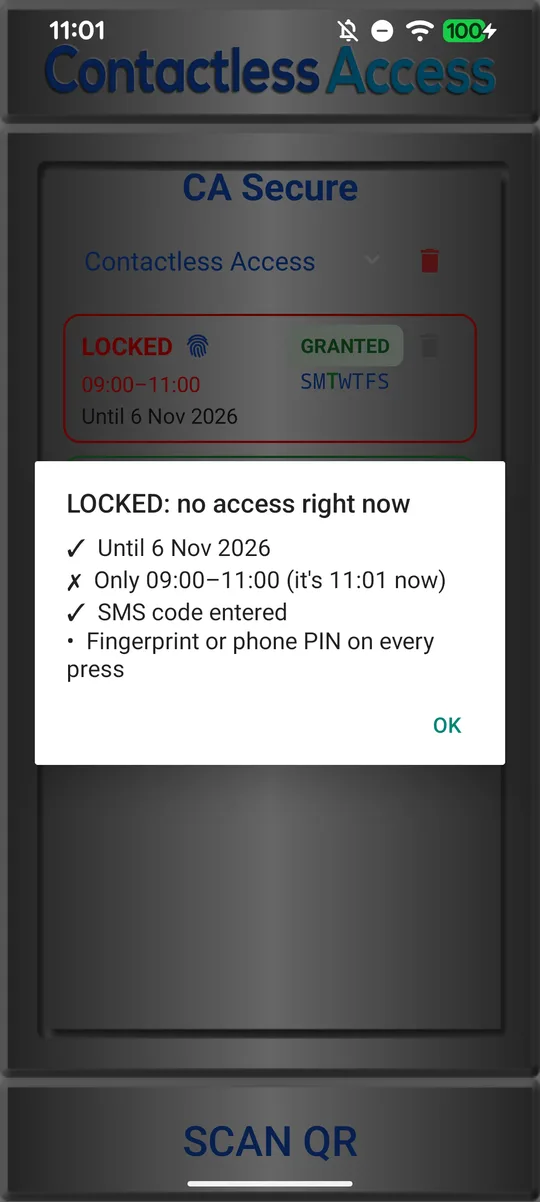
The card shows which rule is ✗
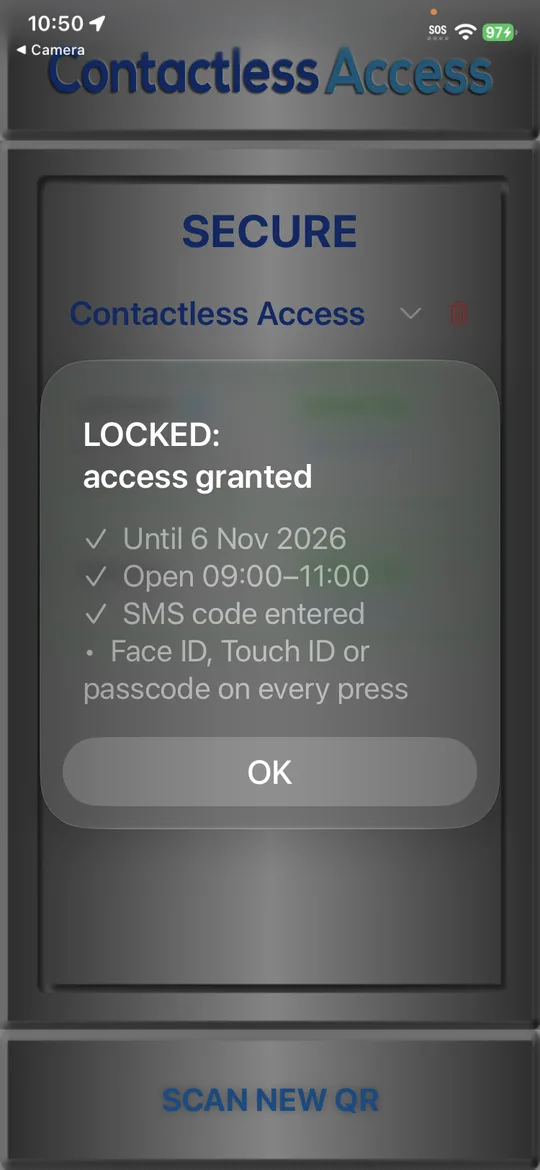
Tap the card: why it's open to you 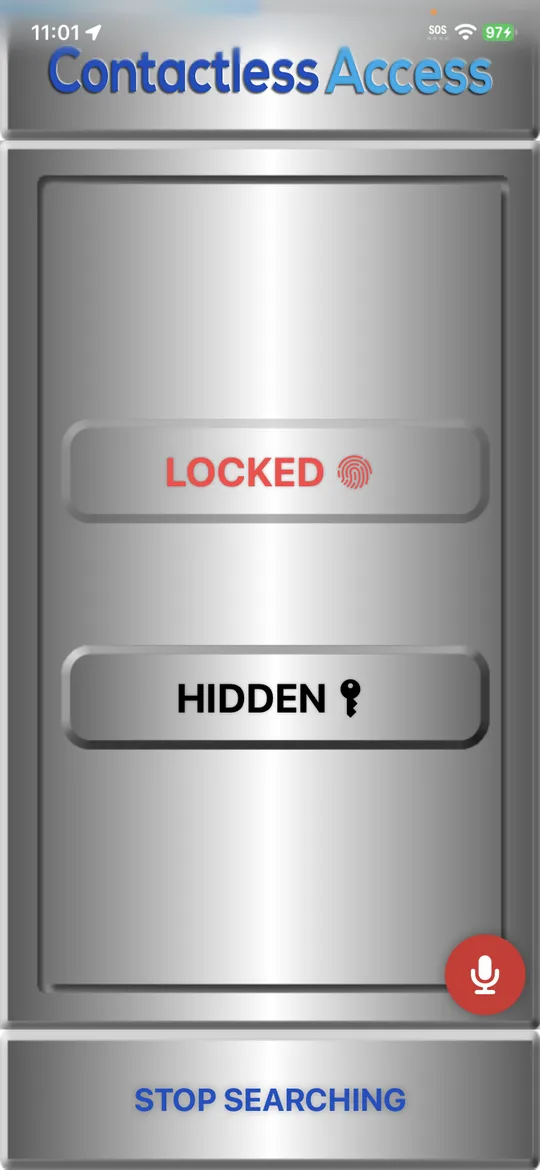
Outside its hours: red 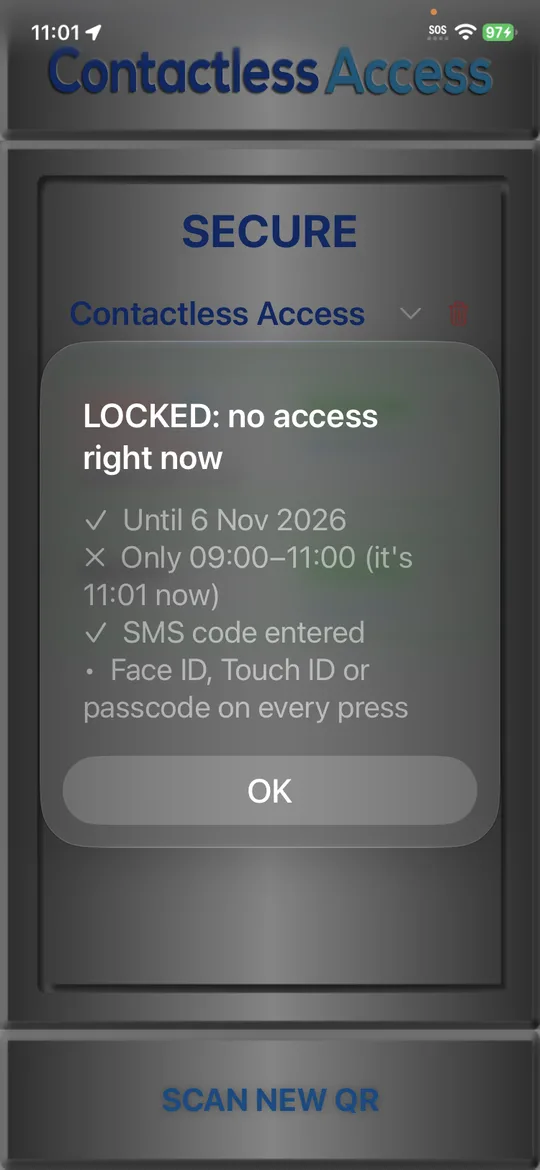
The card shows which rule is ✗
Remove a door
Tap the trash icon (or hold the card) and confirm. When you remove your last secure door, the Secure screen goes away.
Secure doors are the only feature that uses your phone number. See the privacy policy for what's kept and for how long.
Still stuck?
In CA Secure, open Settings and tap Contact to send us a message, or email info@contactlessaccess.com.